Russian Program


Back to Contents
Installing Cyrillic keyboards in Windows XP or Vista
Customizing your keyboard
Typing Cyrillic on other people's computers
Cyrillic in GW computer labs
Cyrillic in Internet browsers
Additional issues (Windows system fonts)
Russian E-Mail
Inserting stress marks in Cyrillic

CYRILLICIZE WINDOWS
For Windows Vista and XP Computers


Please note: If you are using a Macintosh or Linux, your best bet for the latest information is to Google using terms like Cyrillic, Russian Macintosh keyboard or Cyrillic Russian Linux keyboard.


This page covers the basics of Cyrillicizing Windows XP and Vista. Much of the information comes from a very complete site by Paul Gorodyansky, available in both English and Russian. Be sure to visit that site, especially if you need additional detailed information (in both English and Russian) or if you need to Cyrillicize legacy Windows systems, such as Windows 95, 98, ME, NT, or 2000.

Overview. On modern XP and Vista machines, Cyrillic fonts are automatically installed. Your only jobs are to install a Russian keyboard and configure the computer to read Cyrillic menus when they occur. At no time do you have to worry about "losing" English.


Russian Program


Back to Contents
Installing Cyrillic keyboards in Windows XP or Vista
Customizing your keyboard
Typing Cyrillic on other people's computers
Cyrillic in GW computer labs
Cyrillic in Internet browsers
Additional issues (Windows system fonts)
Russian E-Mail
Inserting stress marks in Cyrillic


Russian Program


Back to Contents
Installing Cyrillic keyboards in Windows XP or Vista
Customizing your keyboard
Typing Cyrillic on other people's computers
Cyrillic in GW computer labs
Cyrillic in Internet browsers
Additional issues (Windows system fonts)
Russian E-Mail
Inserting stress marks in Cyrillic


Russian Program


Back to Contents
Installing Cyrillic keyboards in Windows XP or Vista
Customizing your keyboard
Typing Cyrillic on other people's computers
Cyrillic in GW computer labs
Cyrillic in Internet browsers
Additional issues (Windows system fonts)
Russian E-Mail
Inserting stress marks in Cyrillic


Russian Program


Back to Contents
Installing Cyrillic keyboards in Windows XP or Vista
Customizing your keyboard
Typing Cyrillic on other people's computers
Cyrillic in GW computer labs
Cyrillic in Internet browsers
Additional issues (Windows system fonts)
Russian E-Mail
Inserting stress marks in Cyrillic


Russian Program


Back to Contents
Installing Cyrillic keyboards in Windows XP or Vista
Customizing your keyboard
Typing Cyrillic on other people's computers
Cyrillic in GW computer labs
Cyrillic in Internet browsers
Additional issues (Windows system fonts)
Russian E-Mail
Inserting stress marks in Cyrillic


RUSSIAN KEYBOARDS IN XP AND VISTA

In the GW labs, Cyrillic keyboards layouts are already installed. Skip this section and go to Cyrillic in GW Computer Labs.

Important! You cannot install Cyrillic in Windows XP or Vista unless you have (a) Administrator privileges when logged in. For some versions of XP, you need the original Windows disk!
 

Step 1. Go to regional options.

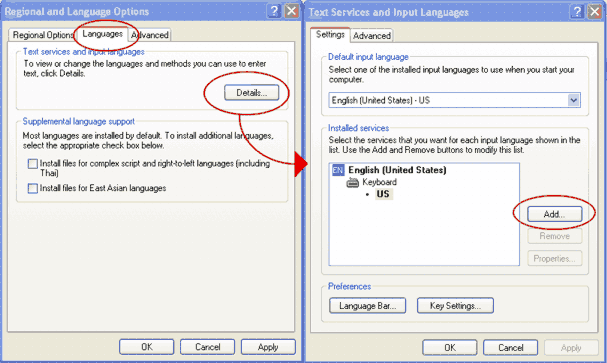
Open Start -> Settings -> Control Panel and then open Regional Options -> Languages -> Details.


In the resulting dialog Text Services and Input Languages, click Add.

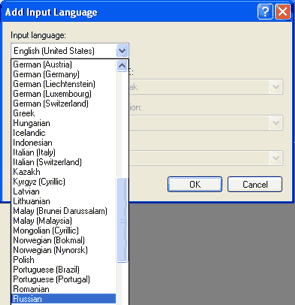
Scroll through the list and look for Cyrillic. You might be prompted to insert your original Windows CD, although for most computers this will not happen.


OK your choice. You will also be given a chance to add a Russian keyboard layout, either Russian (the default) or Russian Typewriter. For the time being, take the default.

Finally, you can create a shortcut key to switch between languages while typing. In the dialog pictured above (Start -> Settings -> Control Panel and then open Regional Options -> Languages -> Details) click Key Settings. The default switch between languages. Is Alt-Shift. You can change it to Ctrl-Shift if you wish. There is also a setting for switching keyboards within a language (for example, English users could switch between the QWERTY keyboard and the Dvorak keyboard). For the time being, don't bother with this setting. Let it be whatever Widows wants it to be.

You now have a Russian keyboard… But…

Does the Microsoft Russian keyboard seems to be chaotic...?
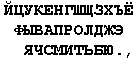
Microsoft installs a "real" Russian keyboard, whose layout looks like this:
...

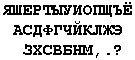
Many students prefer a keyboard that more or less follows English, like this:
...

Which should you use? If you plan to spend time in Russia on a study tour and/or an internship, you'll eventually have to learn the real Russian "Gosstandart" keyboard. So why not start now. On the other hand, if you will will not be using computers in Russia, you can safely stick to the QWERT phonetic keyboard, shown immediately above.

How to switch keyboard layouts. The instructions for this procedure were inspired by Paul Gorodyansky’s comprehensive Cyrillic site. The original instructions and keyboard are available there.

But... who is to be trusted more, Paul Gorodyansky or GW Cyrillic? Before you make a decision, compare:

Feature Gorodyansky GW Cyrillic
Keyboard layout Two variants:
1.  Æ (Zh) = V; Â (V) = W; Ø (Sh) = left bracket
2.  Æ (Zh) = W; Â (V) = V; Ø (Sh) = left bracket
Æ (Zh) = semicolon; Â (V) = V; Ø (Sh) = W
Installation Two-step process. The second step – changing the Windows registry – is automated for you. Two-step process. The second step – changing the Windows registry – requires that you edit a few keys in the Windows registry manually. It is customary to warn users that a mistake in editing the the Windows registry manually can result in a fate worse than death.


GW CYRILLIC INSTRUCTIONS (You can skip these and go to Gorodyanky's procedure below.)

Remember, Windows XP's default Russian keyboards come in two flavors:

Russian – the standard keyboard used in Russia. It is stored in little file on your computer: c:\windows\system32\kbru.dll.
Russian Typewriter – This imitates an old-style Soviet typewriter (c:\windows\system32\kbru1.dll). This keyboard has fallen into disuse.

What you want is Russian Transliterated – the keyboard used by American students. They Russian keys are placed according to their best English equivalents. Russian A is on the English A key.

WHAT THESE INSTRUCTIONS TELL YOU TO DO

Overview. We will replace XP’s unused Russian Typewriter layout (kbru1.dll) with a Russian Transliterated layout (kbdrutr.dll, which you will download). We will leave Russian (standard) as is. That way, you will be able to choose your preferences on the fly.

  1. The first thing you need to do is to check whether Windows considers you a complete novice or not:

    a.   Open Windows Explorer and go to Folder Options screen (it's either View/Folder Options or Tools/Folder Options)
    b.   Find there an option called Hide File Extensions for known file type or something like this. If it's checked then uncheck it.
    c.   Find there an option called Show All Files and make sure that it is selected - we want to see all files, even system ones: keyboard layout files are system files.

  2. Download kbdrutr.dll to your computer. Right click on the link kbdrutr.dll and Save as... to your computer (to, say My Documents or the Windows desktop).

  3. Copy kbdrutr.dll to c:\windows\system32.

    (If Windows warns you not to open up either the Windows or Windows\System32 folders,
    ignore the warnings.
    Click
    Show Files. You'll know you're in the right directory
    if you see other files that start with kbd... and end in .dll.

  4. Edit the registry.
    IMPORTANT! Playing around with the registry can be dangerous. The standard warning is that you should always back up the registry before you mess with it. On the other hand, the changes suggested here are rather benign. Let me make a medical analogy. Doing surgery on yourself is dangerous. The “surgery” that's being suggested here is the computer equivalent of removing a splinter. Of course if you accidentally jab the tweezers into a major artery, the damage could be lethal.

    Go to
    Start -> Run and type in regedit.

    a.   Navigate to HKEY_LOCAL_MACHINE -> SYSTEM -> ControlSet001 -> Control -> Keyboard Layouts -> 00010419.


b.    Change the values in 00010419 according to this chart. (See the instructions immediately below on how to make these changes in Regedit.)

Data key

XP default value

Change to be made in value

Layout File data key

kbdru1.dll

kbdrutr.dll

Layout display name data key

@%SystemRoot%\system32\input.dll,-5056

DELETE THIS KEY ENTIRELY!

Layout Text data key

Russian (Typewriter)

Russian Transliterated


Note: To change the data in Regedit, right-click on the Name of the key to be changed. Then press either Delete or Modify. Pressing Modify opens a little textbox in which you can enter the modification.


Leave any other data keys under 00010419 intact.

c.    Reboot.


     5.   Install the Russian Transliterated keyboard through Windows control panel.

a.   Go to Control Panel -> Regional and language Options -> languages tab -> details.
b.   Choose Add.
c.   From the dropdown menu, choose Russian as for the input language and Russian Transliterated for the keyboard layout.
d.   OK everything
e.   Test out the layout. Open Notepad and switch the keyboard to Russian (RU).
      Type the following keys: sru. On the screen, you should see cpy.
      If you do, then the installation is successful.
      If you do not, try rebooting. Then open Notepad and try the experiment again.


PAUL GORODYANSKY'S METHOD

Find out if Windows considers you a complete novice or not:

  • Open Windows Explorer and go to Folder Options screen (it's either View/Folder Options or Tools/Folder Options)
    Find there an option called "Hide File Extensions for known file type" or something like this. If it's checked then uncheck it - while working with keyboard we need to see xxx.KBD or xxx.REG, that is we need to see the extensions.

  • But even for other tasks I think to forbid Windows to hide the extensions is a good choice - why let Windows consider you a novice who is afraid to see file extensions? In many cases this default hiding can be even dangerous - you will see 2 files, both will have the same name and you would not know which is which, because the extensions are not shown...

  • Find there an option called "Show All Files" and make sure that it is selected - we want to see all files, even system ones:
    keyboard layout files are system files.

Now, download the zipfile set that you need, either
kbdru_Y.zip - the layout where Russian B is on the W key and Æ(Zh) is on the V key, or
kbdru_ZH.zip - with B on the V key and Æ(zh) on the W key.

Go to the folder where you saved the .ZIP, place a cursor on that file, click on right mouse button and choose "Explorer" to see the contents of that archive.

Choose in the menu the following: File / Extract All ("Extract All" if it's Vista), and built-in Windows archive-processing program creates a sub-folder with the same name as archive file has and then places all extracted files to that newly created sub-folder.
After that program does its work, you will see that new folder and all extracted files there.

Now click on file setup.exe there. You'll see a windows with "Installation starts" message and then it disappears - it's how Installers work under Windows. Wait a little bit. if you see a Warning screen, choose there "Run" or "Allow" option; wait a little bit more and you'll see a message that the installation of keyboard layout "Russian Phonetic - RusWin.net" is done successfully.

That's it! Now if you switch to RU you'll be using the Phonetic layout.

If you already activated Standard layout before, you'd rather remove it to have just Phonetic layout working as RU:

Control Panel / Regional and Language Options - Languages tab - Details button
In Vista - Keyboard and Languages tab and Change Keyboard button)
If you see there that for language "Russian" you have two active layouts - Russian and Russian Phonetic - RusWin.net, (In Vista you need to click on '+' next to word Russian to see active layouts), then place cursor to Russian layout line (which is right above Russian Phonetic - RusWin.net) and click on Remove.


Russian Program


Back to Contents
Installing Cyrillic keyboards in Windows XP or Vista
Customizing your keyboard
Typing Cyrillic on other people's computers
Cyrillic in GW computer labs
Cyrillic in Internet browsers
Additional issues (Windows system fonts)
Russian E-Mail
Inserting stress marks in Cyrillic

CUSTOMIZING KEYBOARDS

If you don't like any of the keyboard layouts currently available, you can make your own. Download Microsoft's Keyboard Layout Creator, MSKLC 1.4.

Step 1. If you are running Vista, skip this step and go to Step 2. Download and install MS .NET 2.0.

Step 2.
Download and install MSKLC 1.4

Step 3. Run MSKLC.

Step 4. File => Load existing keyboard. Find the keyboard you want to modify. When done, File => Save Source File As. This will create an intermediate .klc file (not the final keyboared file). Pay attention to where you are saving.

Step 5. Project => Build DLL and Setup package - MSKLC creates the DLL and installation package. Pay attention to where this file is being saved. It will be in a sub-folder of the place where you saved the .klc file from Step 4.

Step 6. Find the setup file in the sub-folder that was created it Step 5. Run setup. Then enjoy your new keyboard. If your new keyboard doesn't show up immediately. Go to Control Panel / Regional and Language Options - Languages tab - Details button. Uninstall the keyboard in question and then reinstall it.


Russian Program


Back to Contents
Installing Cyrillic keyboards in Windows XP or Vista
Customizing your keyboard
Typing Cyrillic on other people's computers
Cyrillic in GW computer labs
Cyrillic in Internet browsers
Additional issues (Windows system fonts)
Russian E-Mail
Inserting stress marks in Cyrillic


TYPING RUSSIAN ON OTHER PEOPLE’S COMPUTERS

You're at work. For some strange reason, your employer doesn't agree to let you modify the Windows registry of the company's system to install Cyrillic. (How closed-minded of them!) Never fear. You can use a temporary on-screen keyboard to write Cyrillic – either phonetically or on the Gosstandart keyboard. The only inconvenience is that you have to write the text you want on screen and then copy and paste it into whatever you want (e-mail, Word document, etc.) This service is available through Paul Gorodyansky's On-Screen Cyrillic Keyboard


Russian Program


Back to Contents
Installing Cyrillic keyboards in Windows XP or Vista
Customizing your keyboard
Typing Cyrillic on other people's computers
Cyrillic in GW computer labs
Cyrillic in Internet browsers
Additional issues (Windows system fonts)
Russian E-Mail
Inserting stress marks in Cyrillic


RUSSIAN IN INTERNET BROWSERS

Internet browsers for Windows (Internet Explorer, Mozilla, and Mozilla Firefox) come configured to be able to read Cyrillic. However, occasionally you'll hit a page that is supposed to be in Russian, but comes out in gibberish. This section shows you what to do in those circumstances.

Overview of the problem. For English letters, all modern computers use the same encoding system. For example, a capital English A is always ANSI code 65 (or to the computer's binary way of counting 1000001). However, for Russian, there are three commonly used encodings: Windows Cyrillic (1251), KOI8r, and Unicode. Most webpages contain information that tells the browser which encoding to use. But occasionally, that information is missing or for some reason, the browser misinterprets it. When that happens, you have to set the encoding manually. Changing the encoding in a browser is not permanent. It can be easily reversed.

In nearly all cases, you'll want to go to View -> Encoding (or View -> Character Set in Mozilla and Firefox) and pick a different set. Sometimes the encodings/character sets that you need are hidden a layer down in the drop-down menues. For example, if you see Windows Cyrillic, but you're looking for KOI8r, try More or, if offered, East European. You''re likely to see additional encoding/character sets there.

Here are some examples of common problems:

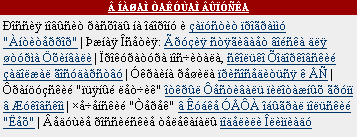
Problem 1. Your “Russian” webpage shows is composed of lots of accented European characters:


Your browser is defaulting to a Western encoding. Choose Windows Cyrillic (1251)

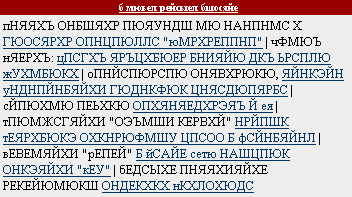
Problem 2. Lots of Cyrillic uppercase gibberish:


Your browser is using KOI8r when it should be using Windows Cyrillic (1251) or vice-versa. Try the other encoding/character set.

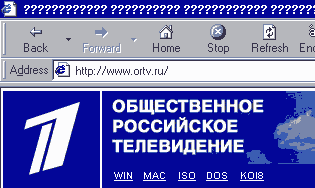
Problem 3. All question marks (???????????). The browser thinks the document is in Unicode. Try Windows Cyrillic (1251). If that doesn't work, try KOI8r.


Russian Program


Back to Contents
Installing Cyrillic keyboards in Windows XP or Vista
Customizing your keyboard
Typing Cyrillic on other people's computers
Cyrillic in GW computer labs
Cyrillic in Internet browsers
Additional issues (Windows system fonts)
Russian E-Mail
Inserting stress marks in Cyrillic


ADDITIONAL ISSUES: WINDOWS SYSTEM FONTS IN MENUS AND TITLE BARS

Even if you have successfully completed all the steps above, you may seem some problems with Cyrillic in certain programs or in parts of programs. Specifically, European accented characters or question marks might replace Cyrillic in

> the title bars and status bars of programs
> menus of Russian-market programs
> headers in mail programs, especially Outlook and Outlook Express, and the Microsoft address book.
> title/author/info for Russian-language media presentations in WinAmp, Media Player, and other media presenters

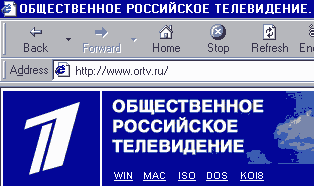
For example...

You see

You should see


The absence of Cyrillic here is because Windows XP as installed on computers in North America automatically selects system fonts and code page settings for English. Fortunately, you can change the settings back and forth quite easily.

1.   Start -> Control Panel -> Regional and Language Options -> Advanced
2.   Look for Language for non-Unicode programs. Choose Russian and click OK.
3.   Reboot when prompted to do so.

After this operation, you will be able to see everything in Cyrillic. You can even give your files legitimate Cyrillic names. Just remember that if you copy a Cyrillic-named file to a computer whose owner has not made this change, the filename will be unreadable.

One other caution, after making this change, menus in European languages may have Cyrillic letters in place of accented letter. For example, a Spanish language whose title bar has a word with an accented e, might have a Russian zh instead.


Russian Program


Back to Contents
Installing Cyrillic keyboards in Windows XP or Vista
Customizing your keyboard
Typing Cyrillic on other people's computers
Cyrillic in GW computer labs
Cyrillic in Internet browsers
Additional issues (Windows system fonts)
Russian E-Mail
Inserting stress marks in Cyrillic


CYRILLIC IN GW COMPUTER LABS


GW Computer Labs are Cyrillic ready. Look for the Language Bar at the top of the screen or the abbreviated language bar at the bottom right of the screen in the System Tray. Right-click and pick Russian.

If you find you are missing the correct keyboard, activate it by doing the following:

1.   Go to Control Panel -> Regional and language Options -> languages tab -> details.
2.   Choose Add.
3.   From the dropdown menu, choose Russian as for the input language and Russian Transliterated for the keyboard layout.
4.   OK everything.
5.   Test out the layout. Open Notepad and switch the keyboard to Russian (RU).
      Type the following keys: sru. On the screen, you should see cpy.
      If you do, then the installation is successful.
      If you do not, try rebooting. Then open Notepad and try the experiment again.


Russian Program


Back to Contents
Installing Cyrillic keyboards in Windows XP or Vista
Customizing your keyboard
Typing Cyrillic on other people's computers
Cyrillic in GW computer labs
Cyrillic in Internet browsers
Additional issues (Windows system fonts)
Russian E-Mail
Inserting stress marks in Cyrillic


RUSSIAN E-MAIL

GW's COLONIAL MAIL. The first rule about using GW Colonial Mail for anything is DON'T. You get minuscule storage, and sometimes the Cyrillic comes out as garbage. (It's usually correctable, as explained below. But you're much better off getting a free account with one of the big e-mailers like Gmail, Yahoo, Hotmail) and forwarding and "spoofing" your GW mail. Forwarding sends all your GW mail to your other account. "Spoofing" means making it look like your other account is actually coming from GW. (Don't worry; it's perfectly legal; see your other account's setup instructions on how to do this.)


BUT IF YOU MUST READ RUSSIAN IN COLONIAL MAIL...

1.   Get into Mozilla, Mozilla Firefox, Netscape, or Internet Explorer.
2.   Log into Colonial Mail (http://cmail.gwu.edu/).
3.   To send a message, simply type it out in Cyrillic.
4.   Reading incoming messages. If you see gibberish, change the encoding/character page. See Russian in Internet Browsers.


OTHER E-MAIL SYSTEMS
 

Most e-mail systems are smart enough to figure out how to display Cyrillic properly without additional coaxing. A hidden line of code in the e-mail header usually tells the e-mail program or browser how the Cyrillic is encoded.


GroupWise.
Give up. GroupWise is incapable of sending Cyrillic. (Likewise, you cannot send Cyrillic mail to people in GroupWise.)


Browser-based mail system such as Gmail, Hotmail, Yahoo, or Mail.ru
(a common Russian service) are Cyrillic friendly. You probably don't have to fiddle with the settings. But in Gmail, make sure that the outgoing mail (in settings) is UTF-8.


Outlook, Outlook Express, Mozilla Messenger, Mozilla Thunderbird, and Entoutage
are Cyrillic friendly. Set defaults as follows:


Default encoding
(look under View => Encoding or under Settings => Encoding): UTF-8. This allows you to write multilingual e-mail.

Plain Text / Rich Formatting
(also called Formatted Mail or HTML-formatting) Always choose Rich Formatting. Cyrillic sent in Rich Format from an Cyrillic-unfriendly system often survives. Plain text Cyrillic sometimes gets murdered.

Sometimes, you can restore murdered Russian by adjusting how your e-mail program displays the Russian...

If you see lots of European accented vowels, mostly lowercase, hit View=>Encoding=>Cyrillic - Windows. This will return you to your mailbox inbox. (If it doesn't, hit View=>Encoding=>Cyrillic - Windows again.) Now click on the message again. It should come out in Cyrillic.

If you see mostly uppercase European accented vowels, hit View=>Encoding=>Cyrillic KOI-R. This will return you to your mailbox inbox. (If it doesn't, hit View=>Encoding=>Cyrillic KOI-R again.) Now click on the message again. It should come out in Cyrillic.


Russian Program


Back to Contents
Installing Cyrillic keyboards in Windows XP or Vista
Customizing your keyboard
Typing Cyrillic on other people's computers
Cyrillic in GW computer labs
Cyrillic in Internet browsers
Additional issues (Windows system fonts)
Russian E-Mail
Inserting stress marks in Cyrillic


INSERTING STRESS MARKS INTO CYRILLIC

There are two strategies for doing stress (accent) marks in Russian Cyrillic.

Method 1 (Vremya Accent), limited to Times New Roman (or very similar-looking fonts) uses a special font that contains accented vowels but which in every other way resembles a standard serifed "Times" family font. Main advantage: Russian spell checkers accept accented characters. That's because the accented word being checked is spelled the same as its non-accented counterpart. Only the font changes. Main disadvantage: "Times" (Times new Roman, Times, etc.) font family only. Another slight disadvantage: the accented characters look ugly on the screen – but they print very nicely. Finally, other computer users can read documnets containing VremyaAccent marks only if they have this font installed on their computers.


Method 2 (Native Stress Marks) inserts "real" stress marks directly over the vowel itself. It works with almost any font. Main advantage: Accents work with almost any font in Windows. You can accent any letter in any alphabet – great for those situations where you really need an accented "j". Then too, documents that use this method can be read on any Windows computer. You don't need special fonts. Main disadvantages: (1) Spellcheckers reject stressed words as misspelled. So xaoc 'chaos' is accepted as correct but it's accented counterpart xaoc is seen as a misspelling. That's because the accented version is really read as something  akin to xa’oc. (2) Sometimes the accents come out misplaced - not quite over the center of the vowel in question - or sometimes too high or too low. This can be adjusted through Format, Font, Spacing, Position. But these adjustments can be tricky.

Finally, in order to make either method work effortlessly, you have to be working in a program that allows macros, such as Word or Excel.


You can combine both methods. For example, you can use the VremyaAccent method for serifed text which you want to spell-check and then add accent marks to Helvetica text, for which you will have to forgo spellchecking.


HOW TO DO IT. Both methods require several steps to set up. But once you're done, everything works easily. The following description installs both methods onto your computer.

  1. Download and install the VremyaAccent fonts and the Word macro installer. (Right-click and save as...) There are four fonts (vremya1.ttf, vremya2.ttf, vremya3.ttf, and vremya1.ttf) – all packaged into an accent installer zip file. The zip file also contains the Word macro installer. Download this file to any folder on your computer. Then unzip the fonts (but not the macro installer) to c:\windows\fonts\ folder.
     
  2. Unzip the macro installer (stressmark-installer.doc) to any directory where you keep Word files.
     
  3. Open the macro installer (stressmark-installer.doc) in Word.

    Word (and perhaps additional anti-virus add-on programs such as Norton and Zone Alarm) are likely to try to deny you access to this file or the macros in it. You may have to temporarily reset the security level on these program to Low for these operations. Or it may be that the program will warn you about the dangers of macros and then let you open them anyway if you choose.
     

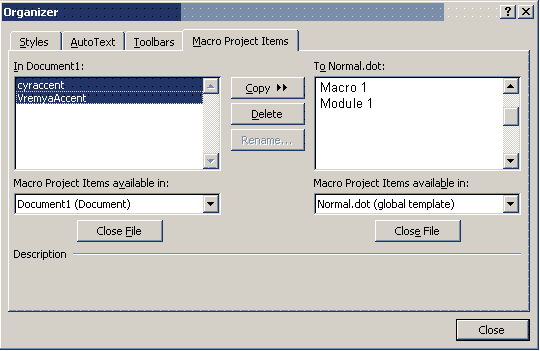
  4. With stressmark-installer.doc on the screen, go to Tools, Macro, Macros, Organizer. That will produce the following menu:

    Macro organizer
     
  5. As shown, highlight the two macros in "Document 1" and copy them to "Normal.dot".
     
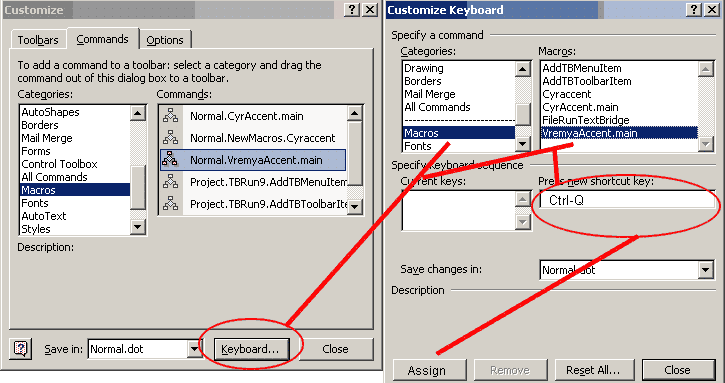
  6. Assign each macro to a shortcut key. In this example, I assign VremyaAccent to the Ctrl-q key. In Word, go to Tools, Customize. That will produce the screen shown at the left. Immediately hit "Keyboard."

    You will now see the "Customize Keyboard" screen shown at the right. Scroll down the categories list. Highlight the macro you want to add a keyboard shortcut to (in this case, Normal.Vremya.Accent.main). Now place the cursor in "Press New Shortcut key" and press the keystroke you want (in this example, I hold down the Ctrl key and press "q". You'll see the dialog box confirm your choice. Now press "Assign." Then press close.


  7. To use the macro type a few words in Russian. For example, type xaoc. Then place the cursor immediate after the a and press Ctrl-q. The accent mark will appear over the a. When you use VremyaAccent, the actual letter a will look fat and ugly on the screen, but it will print normally.
     
  8. Tip for working with Method 2 (Native Stress Marks): Let Word use its native accent marks for all non-exclusive Cyrillic characters (à, å, o, y) and save the CyrAccent stresses for the exclusively Cyrillic characters. It will make your text look neater both on screen and in print. To access Word's native accented characters for a, e, o, y, type ctrl ' (ctrl + apostrophe) before you type the vowel you want to accent.